Split Image into Layers with AIOne Image. Separate Layers. Edit Every Piece Your Way.
Multiple Editable Layers
Transparent PNG & PSD
No Subscription
YOUR IMAGE, YOUR LAYERS
Upload an Image and Split It into Layers
Review the credit cost before you start. No recurring subscription.
Upload your image
Choose a format and processing mode. The credit cost is shown before you start.
This image will use 30 Credits
Upload Image to Split
Drag & drop your image here, or click to browse
JPG, PNG, WebP supported Separate layers with transparent PNG
PNG, JPG, WebP up to 30MB
Credits deducted after separationSingle payment, no subscription
Your selected credit cost is shown before processing begins.
Want to move an object, change the background, or reuse part of a picture without editing everything else? Upload your JPG, PNG, or WebP and let AI split the image into individual layers. Move, hide, rearrange, or download the separated elements so you can make changes without starting over.
Start with the picture you already have. Choose your processing mode and let AI separate recognizable objects, foreground elements, and backgrounds into independent layers.
No manual tracing. No original Photoshop file required.
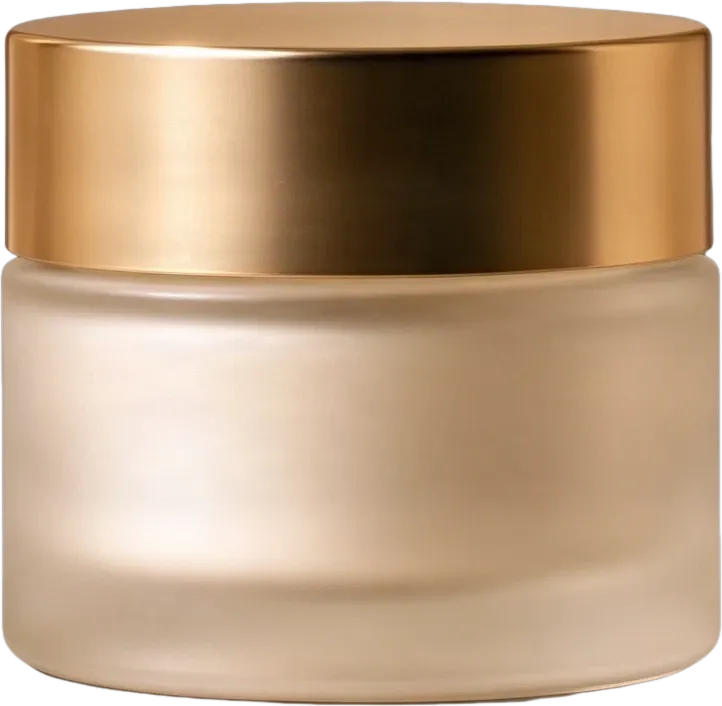
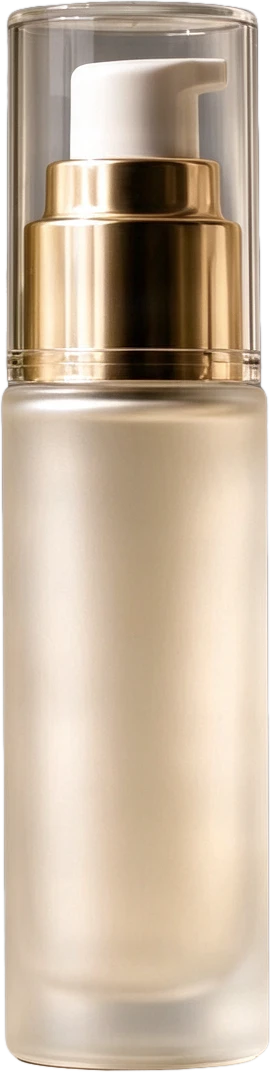
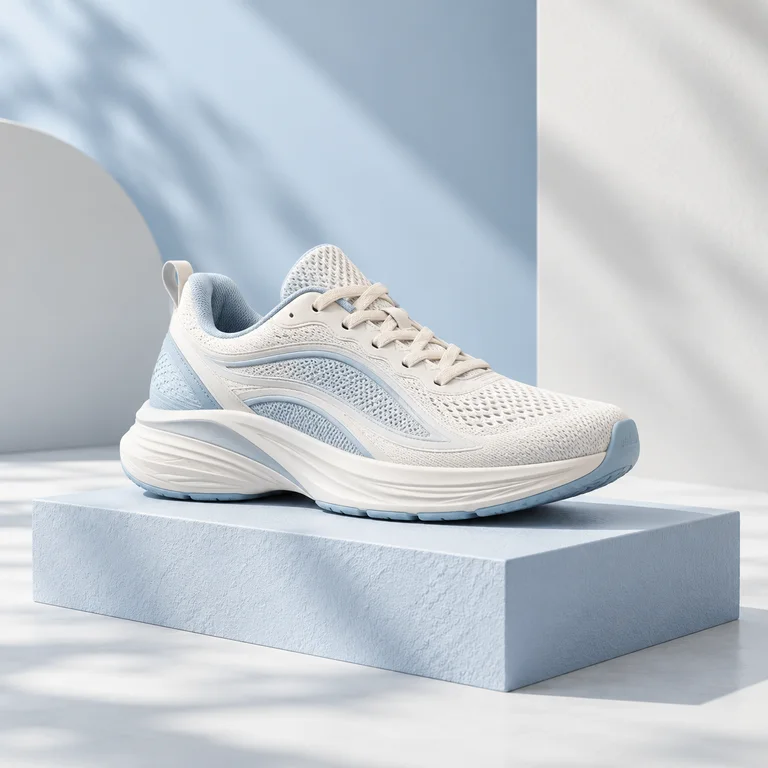
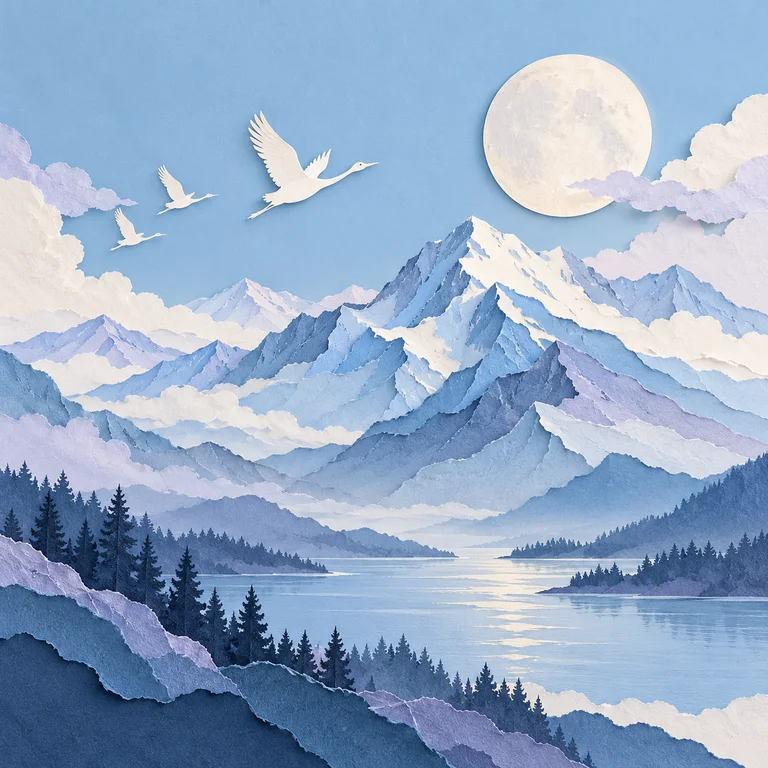
01Start with one flat image.02One image. 9 independent layers.
00
01
02
03
04
05
06
07
08
Swipe to explore, or select a layer below
REAL AI LAYERS · INDIVIDUAL PNGs
SEE IMAGE SPLITTING IN ACTION
See One Image Turn into Multiple Editable Layers
A finished image may look like one unchangeable picture. But once its visual elements are separated, you can start working with them individually. Explore the real layer examples below. Select an element, move it across the canvas, hide it, or change its position in the layer stack.
Showcase
One Image. Individual Layers.
Keep the Design. Change the Details.
Explore real separated images below. Each sample includes its background and independent elements, ready to move, hide and reorder.
Interactive example1448 × 1086 PX
Click elements to select · Drag to move · Reorder or hide from the panel
Real AI-separated layers. Play with them — no generation needed.Upload image
From one flat image to individual objects and backgrounds you can work with.
Why Is Changing One Part of an Image So Difficult?
You have a great picture, but something isn't quite right.
Maybe the product needs to move. Maybe an object is covering something important. Maybe you'd like a different background, but you don't want to change the subject.
When everything is flattened into a single image, even a small adjustment can turn into a complicated editing task.
With separate layers, you have more control. Instead of changing the entire picture, you can work with the parts that matter.
✕
Before: One Flat Image
Objects are stuck together
Moving one item is difficult
Background edits affect the whole composition
Reusing an element takes extra work
✓
After: Separate Layers
Work with individual elements
Move or hide recognizable objects
Experiment with backgrounds
Reuse the layers in new designs
Keep the image you like. Change only the parts you want.
LESS MANUAL WORK. MORE CREATIVE CONTROL.
Everything You Need to Split and Rework an Image
Split Multiple Objects from One Picture
AI analyzes the composition and separates recognizable subjects, props, and decorative elements. You don't need to draw a selection around every item just to get started.
Turn a Flat Image into Independent Layers
Work with individual elements instead of one flattened picture. Each extracted object can become part of a new layout or composition.
Move, Hide, and Rearrange Elements
Want an object on the other side of the image? Or out of the picture entirely? Use the layer workspace to explore different arrangements without generating every variation from scratch.
Keep the Background as Its Own Layer
Split the visible subjects from the background. AI may also reconstruct areas previously hidden by foreground objects, giving you more flexibility when rearranging the scene.
Download Transparent PNGs or Layered Files
Save the separated elements as independent PNG assets or use the supported PSD export option to continue editing in Photoshop.
Pay As You Go
Split an image when you need to. Purchase credits without committing to an automatic monthly subscription.
THREE SIMPLE STEPS
How to Split an Image into Layers Online
You don't need to trace outlines or cut out objects manually. Let AI analyze your flattened image and separate its visual elements into editable layers.
01
Upload the Image You Want to Split
Choose a JPG, PNG, or WebP from your device. You can start with a product photo, an illustration, character artwork, or a finished graphic. You don't need the original layered project file.
02
Let AI Split the Image
AI identifies visible objects and other elements that can become individual layers. The background is separated, and hidden areas may be reconstructed where needed. The number of layers depends on the image.
03
Edit Your Layers and Download
Preview the result, move or hide objects, adjust the stacking order, and export the files you need. Keep editing online or take your layers into Photoshop and other creative software.
Split Objects, Characters, and Backgrounds into Separate Layers
Not every image needs the same kind of separation. Our AI examines the visible content and creates layers from the elements it can recognize.
Product photos & packaging
Products and Objects
Separate products, packaging, accessories, and props so you can adjust individual parts of a product composition.
Characters & portraits
People and Characters
Split recognizable people or illustrated characters from their surroundings to create new compositions or assets.
Scene depth & backgrounds
Foregrounds and Backgrounds
Separate scene elements into layers so you can experiment with depth, positioning, and background changes.
Illustrations & shapes
Graphic and Decorative Elements
Extract visible illustrations, shapes, and decorative pieces from a flattened graphic to reuse them in new designs.
Every image is different. AI determines which elements can be separated based on the visible composition.
MADE FOR THE WAY YOU CREATE
Split Images into Layers for Your Next Creative Project
Product Photos & Ecommerce01
Change a Product Photo Without Starting Over
Have a product image that looks almost right? Split the product, props, and background into layers so you can explore different arrangements without rebuilding the entire scene.
Social Media & Marketing Graphics02
Turn One Design into Multiple Social Posts
Need different versions of a banner or social media graphic? Work with separated objects and decorations to adapt your composition for new layouts.
Illustration & Digital Art03
Reuse Elements from Digital Artwork
Want a character, illustration, or decorative object from an older piece? Split its recognizable elements into independent assets and use them in a new creative project.
2D Animation & Motion Graphics04
Prepare Artwork for Motion and Parallax
Separate foreground objects, scene elements, and backgrounds to start creating layered motion or parallax effects in animation software.
Flattened Image Editing05
Edit an Image When You Don't Have the Source File
Only have the final JPG or PNG? AI can create a new set of layers from the visible content, giving you a practical starting point for making changes.
Split an Image into Layers, Not Just Smaller Pieces
There are different ways to split a picture. Cropping tools divide the canvas into sections. Background removers isolate a subject. An AI image layer splitter works with the visible objects inside the composition.
Task
What it does
Crop an image
Keeps a selected rectangular area
Split image into a grid
Divides the canvas into equally sized pieces
Remove background
Isolates a subject from its surroundings
Split image into layers
Creates separate layers for identifiable elements
If you want a nine-square Instagram grid, a grid splitter is the better tool.
If you want to move a bottle, hide a flower, or change the arrangement of objects inside one photo, splitting the image into editable layers is a better fit.
Don't just cut the picture into pieces. Work with the objects inside it.
KEEP YOUR LAYERS EDITABLE
Split Once. Keep Creating Anywhere.
You can continue working with the separated elements inside the online workspace or download them for your preferred creative software.
Transparent PNG Layers
Save individual objects and visual elements with transparency for reuse in other compositions.
ZIP Layer Package
Download the separated assets together in one organized archive.
Layered PSD
Use the supported HD export option to bring your layers into Adobe Photoshop for further editing.
Composed PNG Image
Rearrange the visible layers and export your updated composition as a new image.
FLEXIBLE PAY-AS-YOU-GO PRICING
Only Pay When You're Ready to Split an Image
You shouldn't have to pay every month to make an occasional edit. Buy credits when you need them, choose your processing mode, and review the cost before starting. Whether you're splitting one image today or working on more designs later, there's no required monthly subscription.
TRANSPARENT PRICING
One Simple Pack. Full Creative Freedom.
30 credits turn one image into separated layers, complete background included. No recurring subscriptions or hidden lock-ins.
Most Popular
Starter Pack
$3.99/one-time
Single payment · No subscription
30 credits
One-time purchase; no automatic renewal
30 credits per image, full background included
Originals and separated layers saved for 7 days
Instant access to transparent PNGs & layered PSD
Credits with the earliest expiry are used first. Need more credits? Simply purchase another pack anytime.
FREQUENTLY ASKED QUESTIONS
Questions About Splitting an Image into Layers
How do I split an image into layers online?
Upload your JPG, PNG, or WebP, select the available processing mode, and start the separation. AI identifies recognizable visual elements and creates individual layers. Once processing is complete, you can preview, rearrange, and download the results.
Can I split a JPG image into layers?
Yes. Even though JPG files don't contain editable layers, AI can analyze the visible picture and generate new layers for identifiable objects, subjects, and background elements.
Can I split a PNG into multiple layers?
Yes. You can upload a flattened PNG and let AI separate its recognizable elements. The tool creates a new layered result rather than recovering any original layers that may have existed before the image was flattened.
Can I split an image into Photoshop layers?
Yes. You can download transparent PNG layers and bring them into Photoshop. The supported HD processing mode also offers a layered PSD export for further editing.
Can AI split every object in an image?
AI can separate multiple recognizable objects, but it cannot guarantee that every visible detail will become its own layer. Overlapping objects, fine details, and complicated scenes may be grouped together or require additional editing.
How many layers will I get from one image?
The number depends on the image's composition and the processing mode. Some pictures contain only a few clear elements, while others contain many. A specific number of layers is not guaranteed.
Can I split the foreground and background into separate layers?
Yes. AI attempts to separate recognizable foreground elements from the background. It may also reconstruct areas hidden behind objects, although those reconstructed details are estimates rather than the original unseen pixels.
Can I move objects after splitting the image?
Yes. In the online layer workspace, you can move separated elements, hide them, and adjust the stacking order. This allows you to explore different compositions without generating a new image for every change.
Can I split only one part of an image?
The current workflow analyzes the whole image and generates layers for the elements it identifies. You can then keep or download the specific layers you want. Exact selection of one requested object is not guaranteed.
Can I split an image into transparent PNG layers?
Yes. Individual object layers can be downloaded as transparent PNG files, making them useful for graphic design, collages, and other creative workflows.
Will my image look exactly the same after splitting?
Not always. AI attempts to preserve the original appearance, but small details, object edges, shadows, and reconstructed background areas may differ. Review the resulting layers before using them in a final project.
Can I split text into editable text layers?
AI may separate lettering as a visual element, but it doesn't automatically recover editable text, fonts, or original typography settings. Text extracted this way remains part of a raster layer.
Is splitting an image into layers the same as slicing it into a grid?
No. A grid splitter cuts a picture into rectangular sections. An AI image layer splitter identifies objects and background elements within the picture and creates separate layers for them.
Do I need Adobe Photoshop to split an image?
No. You can upload an image and work with the separated layers directly in your browser. Photoshop is optional if you want more advanced editing after downloading the files.
What kinds of images work best?
Images with recognizable subjects, defined object boundaries, and clear separation between foreground and background generally provide a good starting point. Very busy scenes and fine overlapping details can be more challenging.
Can I use the split layers for animation?
Yes, as a starting point. Separate foreground objects and background elements can help you prepare assets for parallax movement or simple 2D animation. The tool does not automatically create rigged or fully animated characters.
Do I need a subscription to split images?
No. Image to Layers offers pay-as-you-go credits. You can purchase credits when needed without committing to an automatic monthly subscription.
Can I reuse my separated layers in other designs?
Yes. You can use the exported layers in other projects, provided you have the necessary rights to the original image. Transparent PNG assets are especially useful when combining elements into new compositions.
EXPLORE MORE IMAGE LAYER TOOLS
More Ways to Work with Image Layers
Choose the specialized tool designed for your specific creative workflow.
Split one image into movable, hidable, and downloadable visual layers.
READY TO START?
Split Your Image. Make Every Layer Count.
Don't let a flattened image limit what you can create. Upload your picture, split its recognizable elements into individual layers, and make the changes you want without rebuilding the entire design.