Extract Layers from Image with AIGet the Individual Layers You Need from One Flat Image
Extract Transparent PNGs
Photoshop-Ready Exports
Pay As You Go
ONLINE WORKSPACE
Upload an Image to Extract Its Layers
See the credit cost before processing. No recurring subscription required.
Upload your image
Choose a format and processing mode. The credit cost is shown before you start.
This image will use 30 Credits
Upload Image to Split
Drag & drop your image here, or click to browse
JPG, PNG, WebP supported Separate layers with transparent PNG
PNG, JPG, WebP up to 30MB
Credits deducted after separationSingle payment, no subscription
Your selected credit cost is shown before processing begins.
Have an image you love, but no original design file to edit? Upload your JPG, PNG, or WebP and let AI extract its recognizable objects, subjects, and background into separate layers. Download the parts you want, make changes, and reuse them in your next design without rebuilding everything from scratch.
Start with a finished image. AI identifies its major visual elements and creates individual layers you can inspect, rearrange, and download.
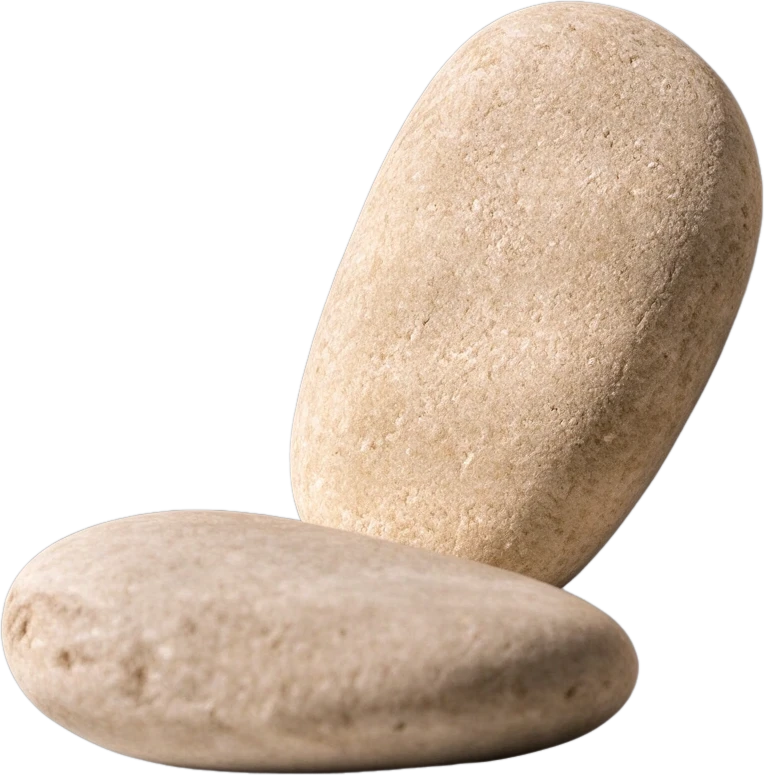
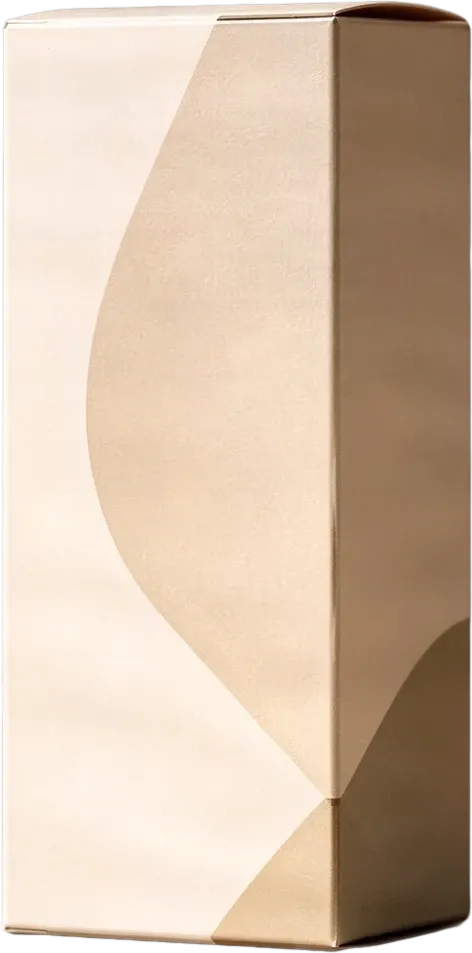
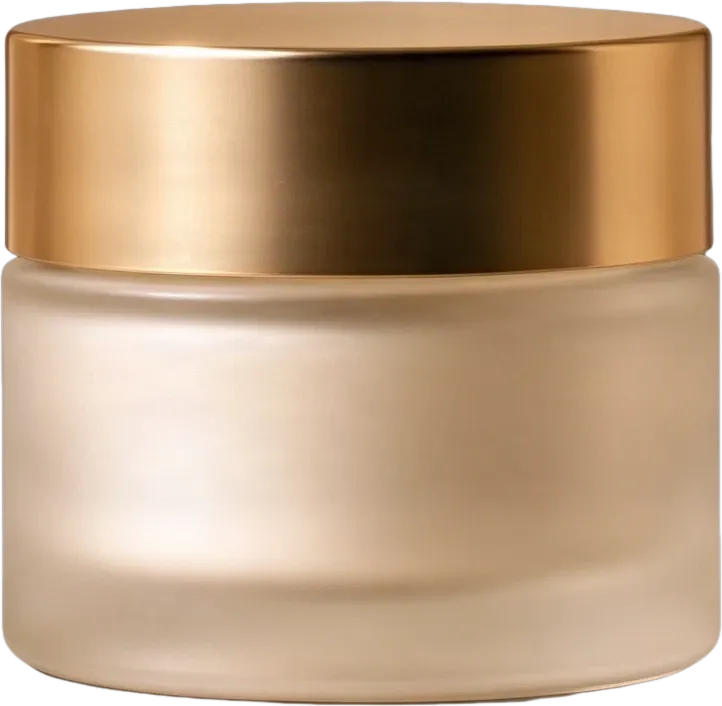
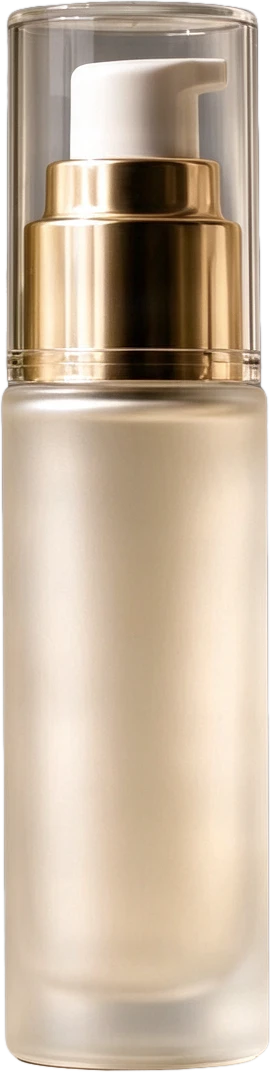
01Start with one flat image.02One image. 9 independent layers.
00
01
02
03
04
05
06
07
08
Swipe to explore, or select a layer below
REAL AI LAYERS · INDIVIDUAL PNGs
REAL EXTRACTED LAYERS
See What's Inside a Single Image
What looks like one finished picture can contain several useful elements. Explore real examples of images separated into individual layers. Select an object, hide it, move it, or change the layer order to see how much more you can do with the original artwork.
Showcase
One Image. Individual Layers.
Keep the Design. Change the Details.
Explore real separated images below. Each sample includes its background and independent elements, ready to move, hide and reorder.
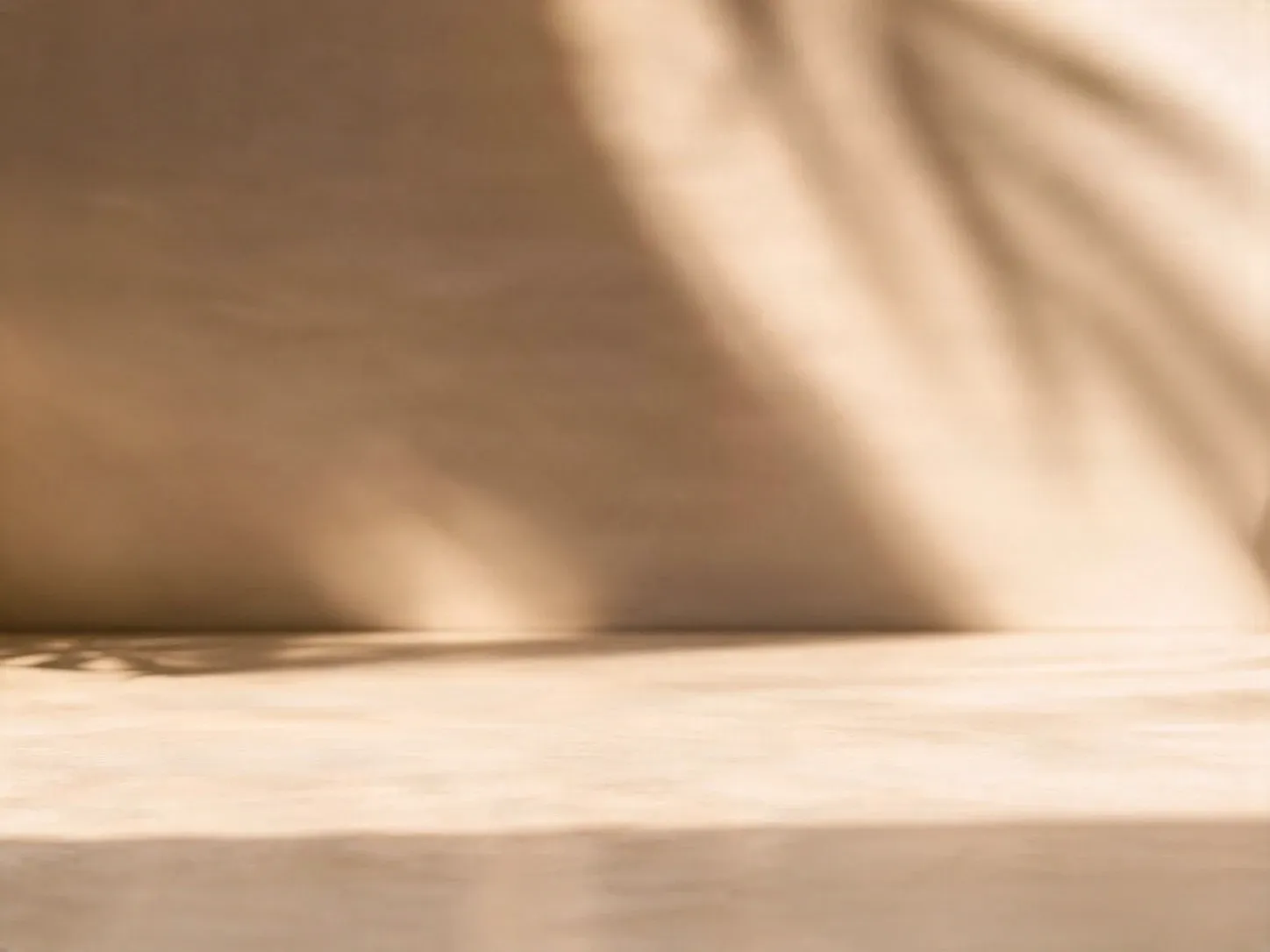
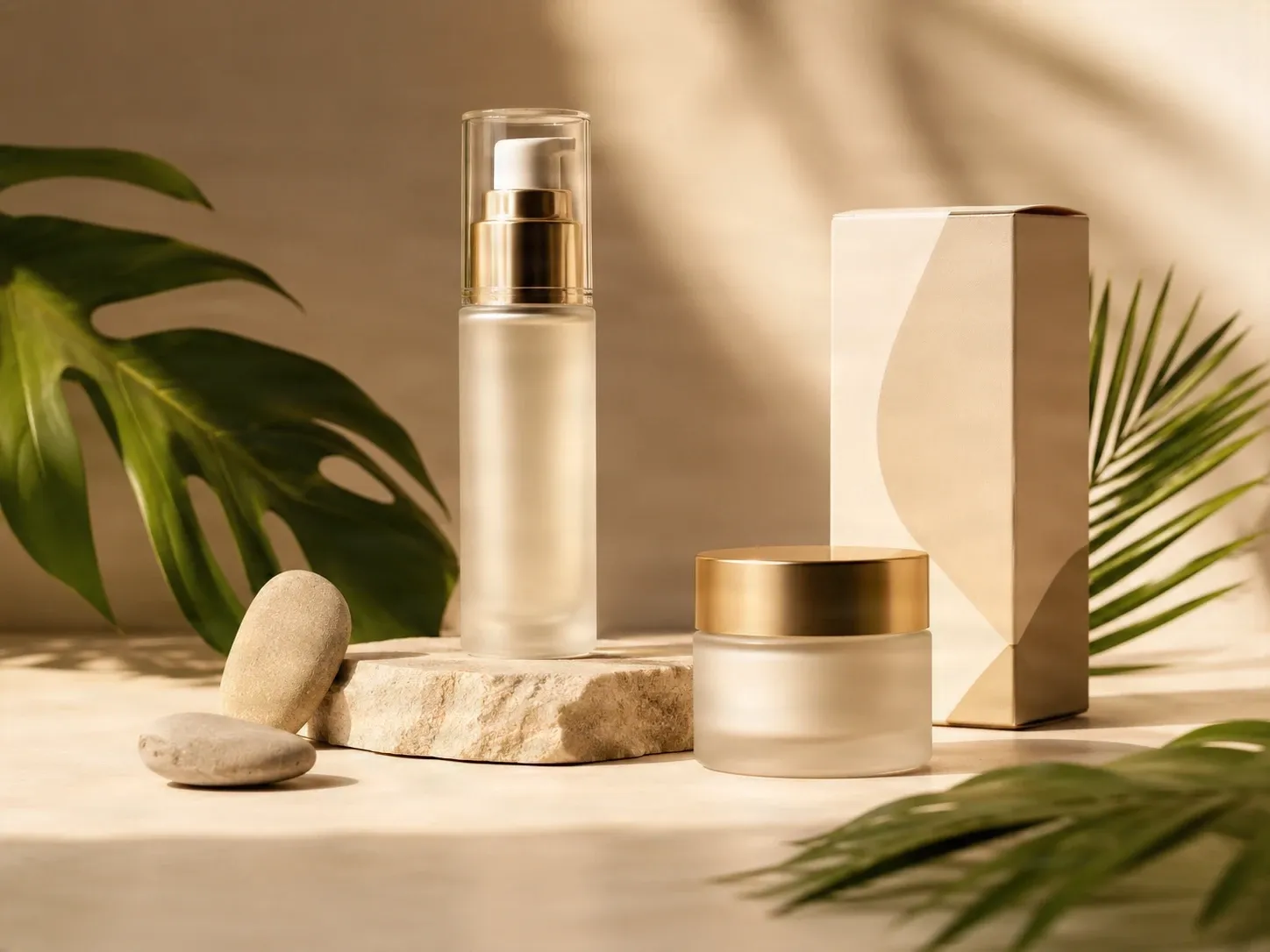
Interactive example1448 × 1086 PX
Click elements to select · Drag to move · Reorder or hide from the panel
Real AI-separated layers. Play with them — no generation needed.Upload image
One source image. Multiple independent assets. More ways to edit and reuse your work.
Maybe a designer sent you a finished PNG instead of the original Photoshop file. Maybe you saved an illustration months ago and now want to change one part. Or maybe you've found the perfect image but need its objects separately.
The problem is that everything has been flattened together.
You can see the objects, but you can't simply select and move them as separate layers.
AI gives you another way forward.
Instead of manually cutting out each object, upload the image and extract new layers from its visible content. Use them to revise your composition, reuse individual assets, or continue editing in your favorite design software.
You don't always need the original project file to start editing again.
WHY EXTRACT IMAGE LAYERS?
Make More Use of the Images You Already Have
Extract Objects Without Tracing Them by Hand
Spend less time outlining shapes, products, characters, and decorative elements. AI identifies recognizable objects and turns them into layers you can work with individually.
Turn Flattened Images into Editable Assets
Have only a JPG or PNG? You can still create new layers from its visible elements, even when the original design project is unavailable.
Keep Objects and Backgrounds Separate
Work with different parts of your composition. Replace a background, move an object, or reuse a product without treating everything as one flat picture.
Edit the Extracted Layers Online
Preview your extracted elements, change their order, hide unwanted parts, and explore new arrangements before downloading.
Download Layers for Your Next Project
Save extracted elements as transparent PNG files or use the supported PSD export option for additional editing in Photoshop.
Pay Only When You Need to Extract Layers
No monthly commitment. Purchase credits when you need them and start a new extraction whenever you have another image to work with.
THREE SIMPLE STEPS
How to Extract Layers from an Image
You don't need to trace outlines or cut out objects manually. Let AI analyze your flattened image and separate its visual elements into editable layers.
01
Upload Your JPG, PNG, or WebP
Choose the image you want to extract layers from. It can be a finished design, product photo, digital illustration, or character artwork. No layered source file is required.
02
Let AI Extract the Visual Elements
AI analyzes the visible image and creates separate layers for identifiable subjects, objects, and background areas. The number of extracted layers depends on the composition and processing mode.
03
Preview, Edit, and Download Your Layers
Explore the extracted layers in the workspace. Rearrange, hide, or reposition elements, then download your results as supported image and layered file formats. Continue working online or bring the files into your favorite design app.
An image can contain many useful pieces. AI layer extraction helps you work with the recognizable parts of a composition independently.
Product photography
Products and Props
Extract bottles, packaging, decorative objects, and other recognizable items from a product photo.
Characters & avatars
Characters and People
Separate identifiable characters or people from a scene for new compositions and creative projects.
Background isolation
Backgrounds and Scenery
Work with background areas separately and explore different ways to use the foreground elements.
Graphic design assets
Decorative Design Elements
Extract illustrations, shapes, stickers, and recognizable graphic elements for reuse in other layouts.
Important Note
AI extracts new raster layers from the visible image. It does not recover the original editable text, vector paths, or lost project data.
PUT YOUR EXTRACTED LAYERS TO WORK
Give Existing Images a Second Life
1
Reuse Elements from an Old Design
Only have a flattened poster or banner? Extract recognizable objects and decorations to help create a new version without rebuilding every visual element.
2
Update Your Product Photos
Extract a product and its surrounding props so you can explore different backgrounds, arrangements, and marketing visuals.
3
Repurpose Digital Illustrations
Turn characters, objects, and background elements from an illustration into assets for a new collage, cover, or creative composition.
4
Prepare Artwork for Animation
Separate identifiable foreground and background elements to begin preparing artwork for parallax effects or simple 2D animation.
5
Recover Usable Assets from a Flattened File
Lost the original layered design? AI may help you reconstruct a workable layer structure from the finished image, reducing the need to start completely from scratch.
New Editable Layers, Not a Recovered Original Project
Extracting layers from a flattened image is different from opening the original Photoshop file.
A JPG or flattened PNG only contains its final visible pixels. It doesn't retain the original text layers, adjustment settings, masks, or objects that the designer used.
Our AI analyzes those visible pixels and generates new image layers that you can edit and reuse.
AI can help you
AI cannot guarantee
Extract recognizable objects
Recover the exact original Photoshop layers
Generate transparent PNG assets
Restore editable text and original fonts
Separate foreground and background
Reveal the true pixels hidden behind objects
Recreate a workable layer structure
Preserve every edge and detail perfectly
Prepare layered files for editing
Restore original vector paths or effects
Think of it as a new editable starting point—not a way to recover lost source data exactly.
KEEP WORKING YOUR WAY
Take Your Extracted Layers into Your Favorite Editor
Transparent PNG Layers
Download extracted elements with transparent backgrounds, ready to use in other images or compositions.
ZIP Layer Package
Keep the extracted assets together in one convenient download.
Layered Photoshop PSD
Choose the supported HD export option to obtain a layered PSD for continued editing in Photoshop or other compatible software.
Updated Image Export
Export a new image after rearranging the visible layers in the online workspace.
Extract your layers once, then keep creating wherever you work best.
SIMPLE, FLEXIBLE PRICING
Extract the Layers You Need. Skip the Subscription.
You shouldn't need an ongoing subscription just because you want to edit an old image. Image to Layers offers pay-as-you-go credits. Choose your processing mode, review the cost, and decide when you're ready to extract. Whether you're working on one image or returning with another project later, you're in control of when you purchase more credits.
TRANSPARENT PRICING
One Simple Pack. Full Creative Freedom.
30 credits turn one image into separated layers, complete background included. No recurring subscriptions or hidden lock-ins.
Most Popular
Starter Pack
$3.99/one-time
Single payment · No subscription
30 credits
One-time purchase; no automatic renewal
30 credits per image, full background included
Originals and separated layers saved for 7 days
Instant access to transparent PNGs & layered PSD
Credits with the earliest expiry are used first. Need more credits? Simply purchase another pack anytime.
One-time credit purchases. No automatic monthly subscription.
FREQUENTLY ASKED QUESTIONS
Questions About Extracting Layers from an Image
Can I extract layers from an image that has already been flattened?
Yes. You can upload a flattened JPG, PNG, or WebP and let AI identify its major objects and background elements. The tool creates new editable image layers from the visible content, even if the original layered project file is unavailable.
How do I extract layers from a JPG image?
Upload your JPG, choose the available processing mode, and start extraction. AI analyzes the picture and generates separate layers for recognizable elements. After processing, you can preview the layers and download the supported files.
Can I extract layers from a PNG image?
Yes. A flattened PNG can be processed to create separate image layers. The tool doesn't need the PNG to contain existing layers, because it analyzes the visible image and creates a new layered result.
Can AI recover the original Photoshop layers from a JPG?
No. A JPG doesn't store the original Photoshop layer structure. AI can generate new layers that resemble the visible objects and background, but it cannot recover the exact original text, masks, effects, or hidden design elements.
Can I extract individual objects from a picture?
Yes. AI can identify recognizable objects and generate independent image layers. For example, a photo containing a bottle, flowers, and decorative props may produce separate assets for these elements.
Can I extract only one specific object from an image?
You can extract the image's recognizable elements and keep the layer you need. The number and type of layers depend on the image and selected processing mode. Extraction of an exact, user-specified object is not guaranteed.
How many layers can I extract from one image?
There isn't a guaranteed number. A simple image may produce a few layers, while a more complex composition may contain many recognizable elements. AI determines the separation based on the image and available processing settings.
Will extracted image layers have transparent backgrounds?
Individual object layers can be exported as transparent PNG images. This makes it easier to place the extracted elements over a new background or combine them with other visual assets.
Can AI recover areas hidden behind objects?
AI can attempt to reconstruct covered background areas using the surrounding visual information. However, those hidden pixels cannot be recovered exactly from a flattened image. Reconstructed areas are AI-generated estimates.
Can I extract text as an editable text layer?
Not as a native text layer. AI may separate visible lettering as part of a raster image layer, but that does not restore editable text, font information, or the original typography settings.
Can I export the extracted layers as a PSD file?
Yes. A layered PSD export is available through the supported HD processing workflow. You can also use transparent PNG files and the ZIP download to continue editing in other software.
Can I edit the extracted layers without Photoshop?
Yes. The online layer workspace lets you view, move, hide, and reorder separated elements. You can explore different compositions before exporting your files. Photoshop is optional for more advanced editing.
What types of images work best for layer extraction?
Images with clearly recognizable objects, good contrast, and defined boundaries generally provide better starting points. Complicated overlapping shapes, motion blur, very small elements, and detailed textures can make extraction more difficult.
Is extracting image layers the same as removing the background?
Not exactly. Background removal usually isolates one subject from the surrounding scene. Image layer extraction can create multiple independent elements, including objects and background areas, giving you more flexibility when editing.
Can I use extracted layers for animation?
Yes, as a starting point. You can use separated objects and background elements to prepare parallax scenes or simple animation assets. However, image layer extraction does not automatically create rigged characters or fully animated assets.
Will extracting layers reduce the quality of my image?
AI aims to preserve important visual details, but extracted edges, textures, and reconstructed areas may differ from the source. Review the layers before using them in a final project, particularly when precision is important.
Do I need a monthly subscription to extract layers?
No. Image to Layers offers one-time credit purchases. You can buy credits when you need to process an image without signing up for an automatic monthly subscription.
Can I reuse extracted layers in other projects?
Yes. The exported layers can be used as image assets in other creative projects, subject to your rights to the original image and any applicable usage restrictions. You should only extract and reuse artwork you have permission to use.
MORE IMAGE LAYER TOOLS
Explore More Ways to Work with Image Layers
Choose the tool tailored to your creative workflow and file requirements.
Have a finished image but wish you could edit its individual parts? Upload it, extract new layers with AI, and give yourself more freedom to change, rearrange, and reuse the elements you already have.