AI Image Layer Separator Separate One Image into Layers You Can Actually Edit
Separate Multiple ElementsEditable LayersNo Subscription Required
ONLINE WORKSPACE
Upload an Image to Separate Its Layers
Choose a photo, illustration, or design you want to edit. Our AI analyzes the image and separates identifiable elements into layers you can preview and work with individually.
Upload your image
Choose a format and processing mode. The credit cost is shown before you start.
This image will use 30 Credits
Upload Image to Split
Drag & drop your image here, or click to browse
JPG, PNG, WebP supported Separate layers with transparent PNG
PNG, JPG, WebP up to 30MB
Credits deducted after separationSingle payment, no subscription
Your selected credit cost is shown before processing begins.
Your image is processed as one layer-separation job. Review the cost before starting and pay only when you choose to generate.
Have a finished image but need to change just one part of it? Upload your picture and let AI separate objects, characters, and backgrounds into individual layers. Move elements around, remove what you don't need, and download the layers for your next edit.
No need to recreate the whole image just to change one detail.
One Flat Image. Multiple Layers. More Freedom to Edit.
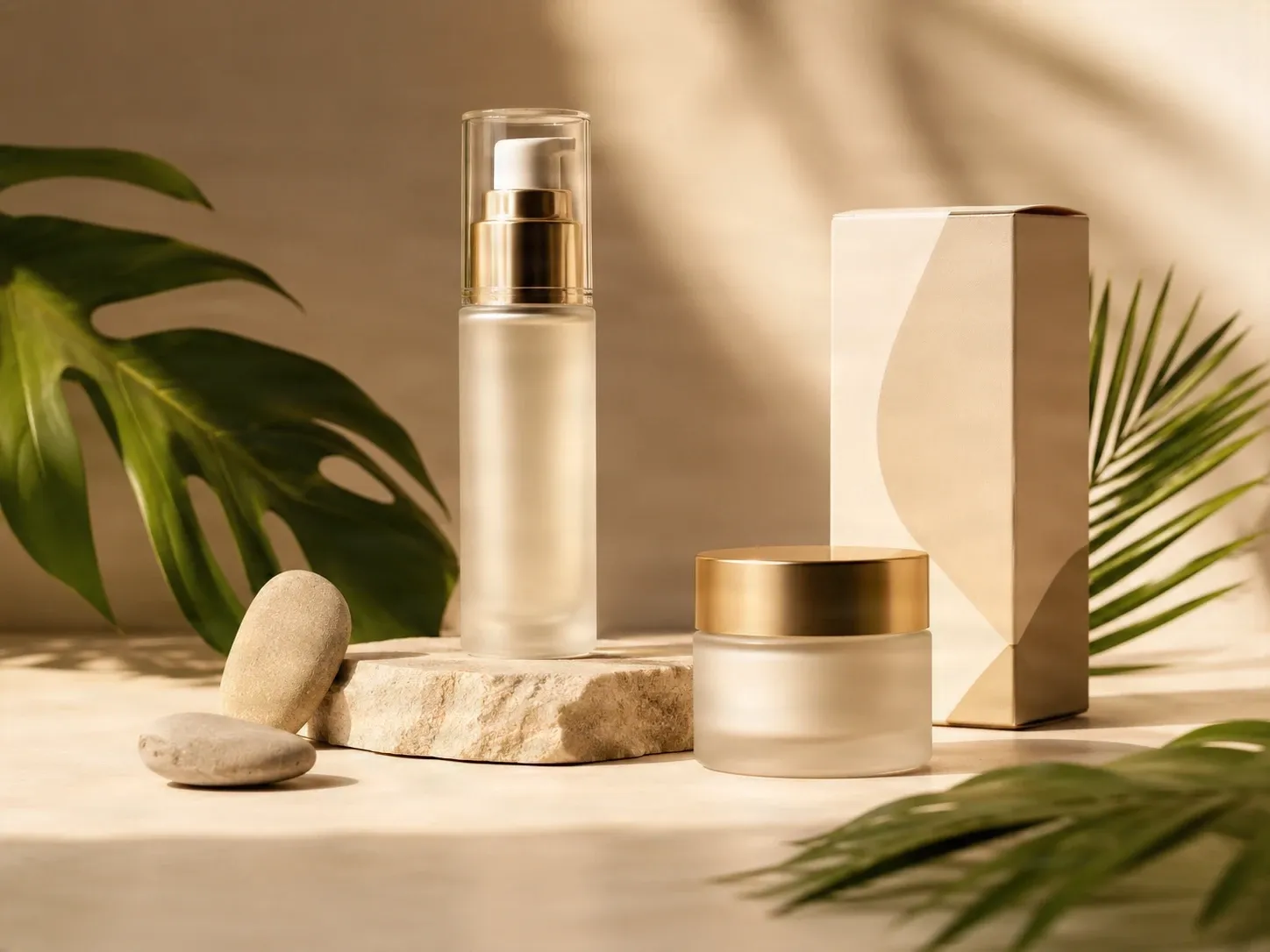
A single image doesn't have to stay a single image. See how an existing design can be separated into individual elements, giving you more control over what stays, what moves, and what changes.
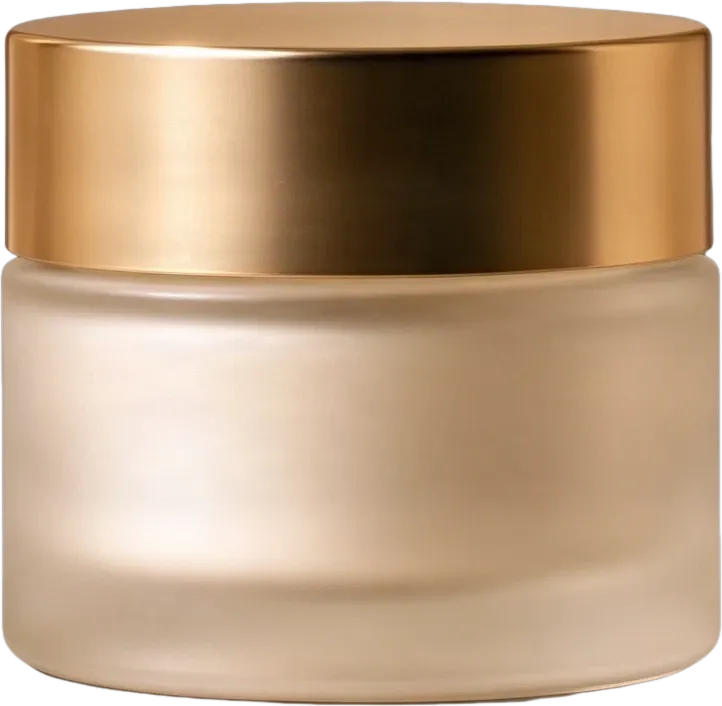
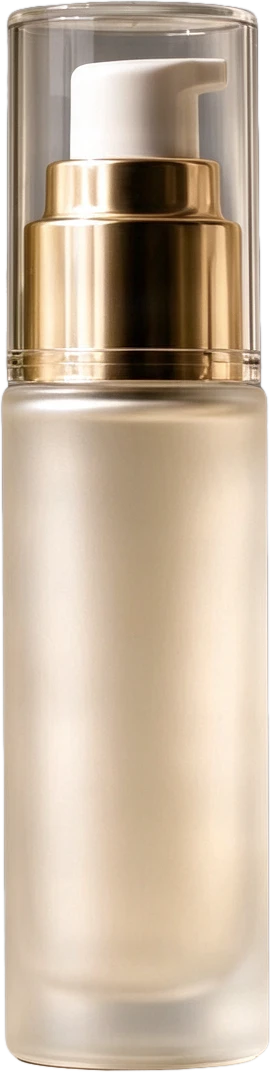
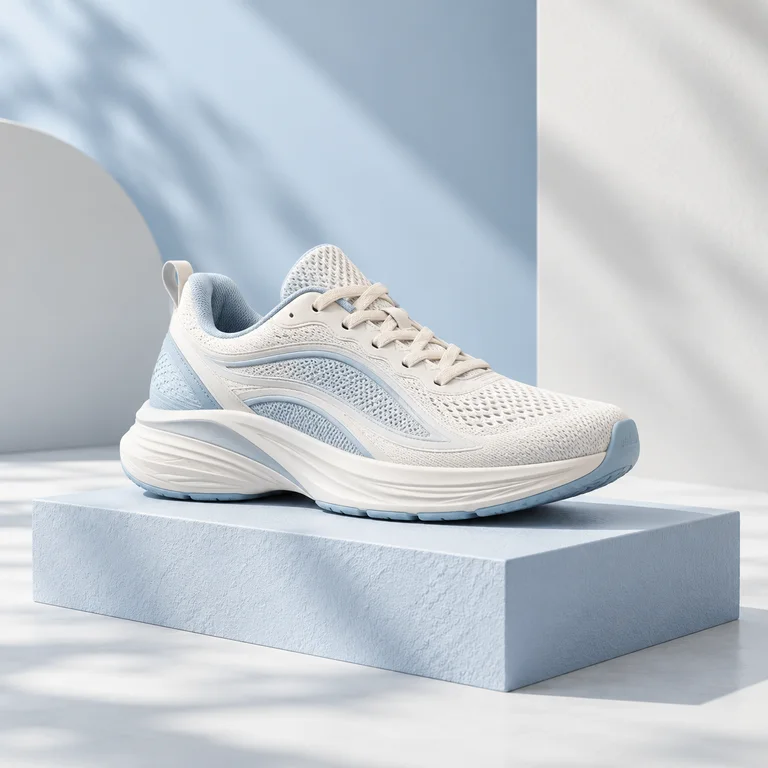
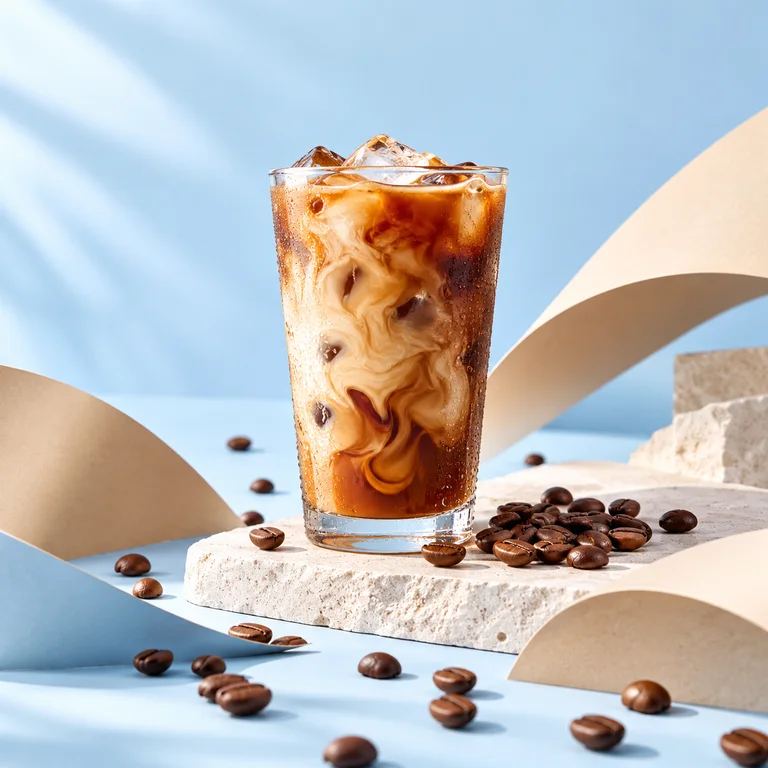
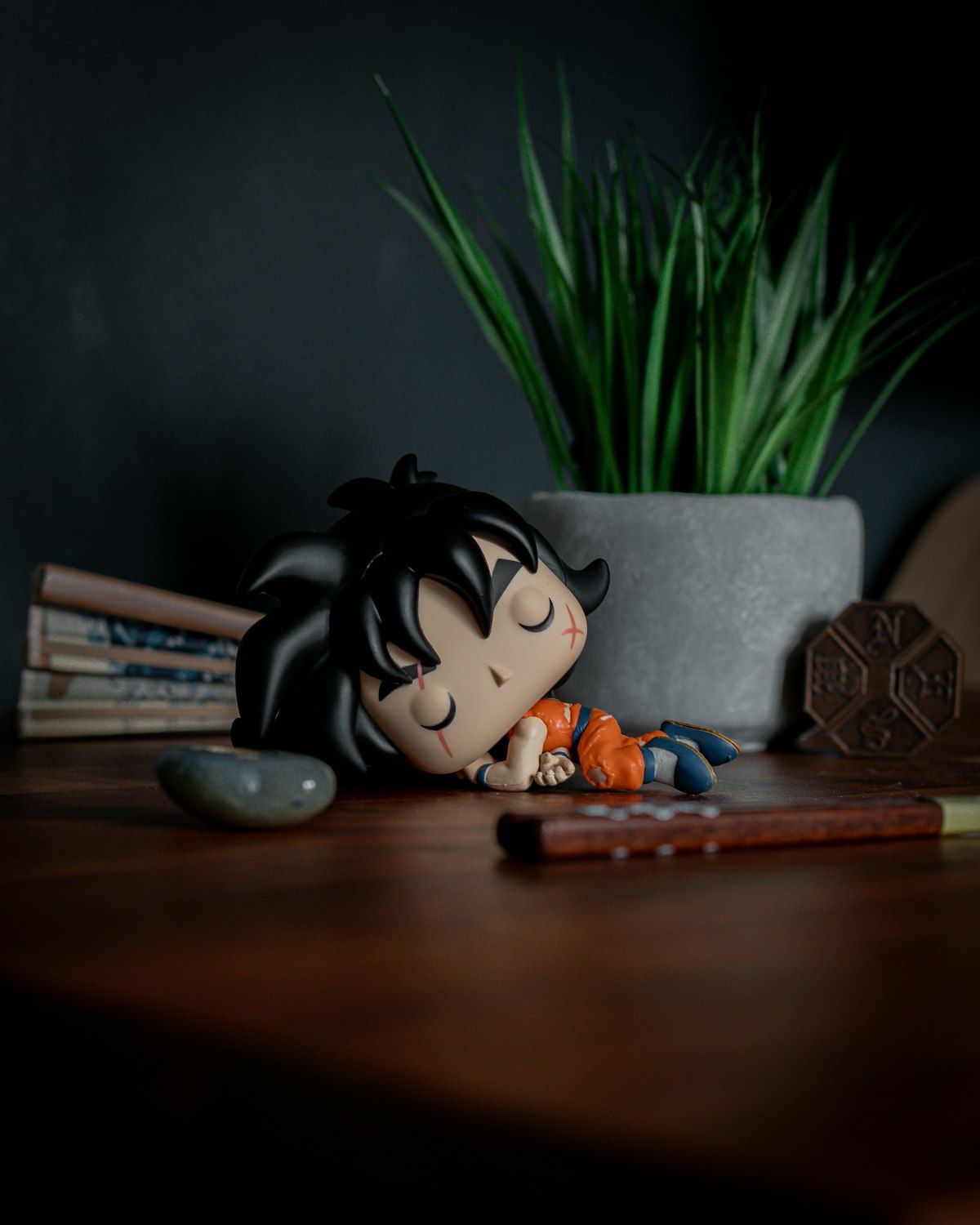
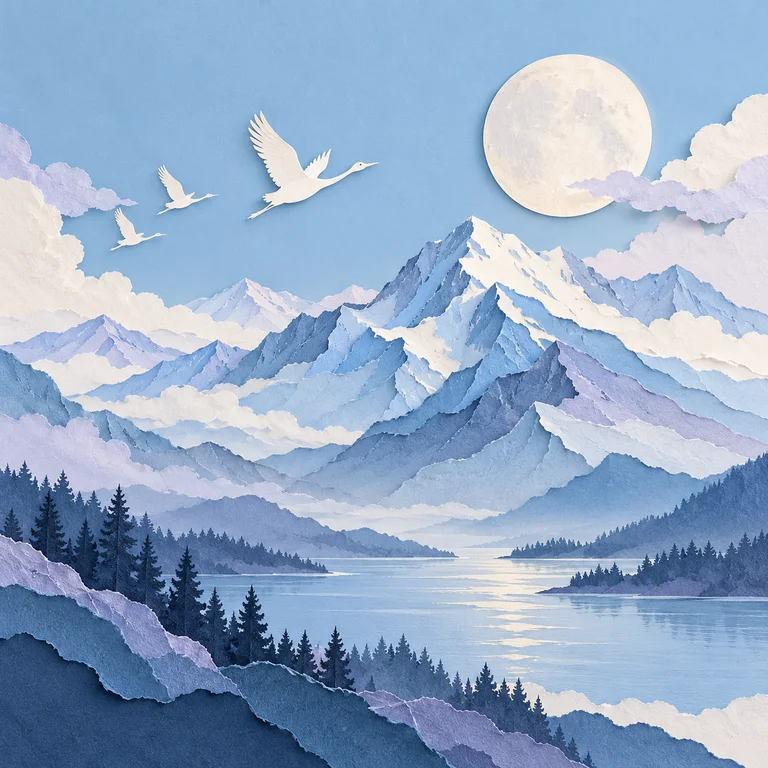
01Start with one flat image.02One image. 9 independent layers.
00
01
02
03
04
05
06
07
08
Swipe to explore, or select a layer below
REAL AI LAYERS · INDIVIDUAL PNGs
Showcase
One Image. Individual Layers.
Keep the Design. Change the Details.
Explore real separated images below. Each sample includes its background and independent elements, ready to move, hide and reorder.
Interactive example1448 × 1086 PX
Click elements to select · Drag to move · Reorder or hide from the panel
Real AI-separated layers. Play with them — no generation needed.Upload image
Keep the parts you love. Change the parts you don't. Whether you're adjusting a product image, rearranging an illustration, or reusing design elements, separated layers give you a better starting point.
Stop Starting Over Every Time You Need One Small Change
You found the perfect image, except for one object in the wrong place. Maybe the background needs replacing. Maybe you want to reuse a character, product, or design element somewhere else. When everything is flattened into one image, even a simple edit can become frustrating. An image layer separator helps you work with the parts of your image instead of treating the entire picture as one unchangeable piece.
Everything Is Stuck Together
Moving an object means working around its background.
Removing one element can leave an empty space.
Reusing part of a design often means tracing or cropping it manually.
Changing a composition can feel like starting from scratch.
Edit Each Part Separately
Work with individual objects and visual elements.
Adjust the composition without moving everything else.
Reuse separated layers in other designs.
Export layers for further editing.
Spend less time rebuilding and more time making the changes you actually wanted.
MORE CONTROL, LESS MANUAL WORK
Everything You Need to Break an Image Apart
Separate Multiple Objects
Turn a flattened image into a collection of individual visual layers. Work with the elements that AI can identify without manually tracing every outline.
Move and Rearrange Elements
Want the main object somewhere else? Work with its separated layer to explore new layouts and compositions.
Work with Backgrounds Separately
Separate prominent objects from the surrounding scene. Where possible, AI can help reconstruct areas that were hidden behind them.
Get Individual Transparent Layers
Use separated elements as independent image assets, ready for further composition and editing.
Download Layers for Your Creative Workflow
Export supported layer files and continue working in your preferred image editing software, including Photoshop-compatible workflows.
Pay Only When You Need It
Have one image to separate today and another next month? Use the pay-as-you-go option without committing to a recurring subscription.
THREE SIMPLE STEPS
How to Separate an Image into Layers
You don't need to know how to use complicated selection tools. Start with one image and let AI do the initial separation.
01
Upload Your Image
Choose the JPG, PNG, or WebP you want to work with. It could be a product photo, digital illustration, character artwork, or an existing design. You only need the finished image. No original project file is required.
02
Let AI Separate the Layers
AI examines the composition and identifies objects and other visual elements that can be separated. It creates individual layers and may reconstruct parts of the background hidden behind objects. The number and quality of layers depend on the image.
03
Preview, Edit, and Download
Explore your separated layers in the workspace. Hide an unwanted element, move an object, change the stacking order, or download the layers for your next project. Keep editing here or continue working in your preferred design software.
Why Use an Image Layer Separator Instead of a Background Remover?
Removing a background is useful when you only want to cut out one subject. But what if your image contains multiple objects that you want to edit separately? That's where image layer separation becomes more useful.
What you need
Background remover
Image layer separator
Remove the background around a subject
Yes
Yes, through separated layers
Work with multiple independent objects
Usually limited
Yes, when detected
Rearrange elements
Not typically
Yes
Keep a separate background
Not typically
Yes
Reconstruct hidden background areas
Not typically
Where AI can reconstruct them
Download multiple layers
Not typically
Yes
Create new compositions
Limited
Yes
Don't just remove the background. Unlock the pieces inside your image and give yourself more ways to use them.
Whether you're updating a product photo or working on your next illustration, editable layers make it easier to experiment without rebuilding the original image.
Product photography
01. Product Photos and Online Stores
Have a product photo with props, decorations, or a background you'd like to change? Separate the elements so you can experiment with different product layouts, remove distracting objects, or prepare assets for new store visuals.
Graphic design
02. Posters, Banners, and Social Media Graphics
Need to turn one design into multiple variations? Separate decorative objects, main subjects, and other recognizable elements. Rearrange the parts to create layouts for social posts, promotional graphics, or new campaign ideas.
Digital art and characters
03. Character Art and Digital Illustrations
Want to reuse a character from an existing illustration? Separate recognizable characters and surrounding objects so you can place them into new compositions. For animation preparation, use the extracted layers as a starting point for further manual work.
Collage and composition
04. Collages and Creative Compositions
Found an image with several elements you'd love to use independently? Extract the parts, change their arrangement, and combine them with other artwork to explore completely new visual ideas.
2D animation preparation
05. Animation and Parallax Scenes
Want to give a still illustration a sense of depth? Separate foreground elements, objects, and backgrounds to prepare assets for parallax effects or simple layered movement in animation software.
READY FOR YOUR NEXT EDIT
Keep Your Layers. Keep Your Options Open.
Separating an image is only the beginning. The real benefit is being able to take those individual elements into your next design.
Transparent PNG Layers
Work with independent image elements that can be placed over different backgrounds or combined with other artwork.
ZIP Layer Package
Keep your separated image assets together in one organized download.
Layered PSD
Use the supported HD export option to continue editing your separated layers in Photoshop.
Updated Composition
Export the visible arrangement from your layer workspace as a new image.
Your separated layers don't have to stay inside one tool. Download them and keep creating your way.
PAY AS YOU GO
Separate Images When You Need To. No Subscription Required.
You shouldn't need a monthly subscription just to separate a few images. Buy credits when you need them, see the processing cost before you begin, and use your separated layers for your next creative project.
One-time credit purchases available
No mandatory monthly subscription
Processing cost displayed before you start
Preview and edit your completed layers without a new generation charge
Download your completed results without paying for the same generation again
TRANSPARENT PRICING
One Simple Pack. Full Creative Freedom.
30 credits turn one image into separated layers, complete background included. No recurring subscriptions or hidden lock-ins.
Most Popular
Starter Pack
$3.99/one-time
Single payment · No subscription
30 credits
One-time purchase; no automatic renewal
30 credits per image, full background included
Originals and separated layers saved for 7 days
Instant access to transparent PNGs & layered PSD
Credits with the earliest expiry are used first. Need more credits? Simply purchase another pack anytime.
FREQUENTLY ASKED QUESTIONS
Everything You Want to Know About Separating Image Layers
What is an AI image layer separator?
An AI image layer separator is a tool that breaks a flattened image into separate visual elements. Instead of editing everything as one picture, you can work with individual objects, characters, and backgrounds. This makes it easier to rearrange or reuse parts of an existing image.
How do I separate an image into layers?
Upload your image, select the available processing mode, and start separation. AI identifies visual elements and generates individual layers. Once processing is complete, you can preview the results, adjust your composition, and download the separated files.
Can I separate a JPG image into layers?
Yes. You can upload a JPG and use AI to identify and separate its main visual elements. Although JPG files do not contain editable layers, the tool can generate new layers from the visible content. The result depends on how clearly the objects can be identified.
Can I split a PNG image into multiple layers?
Yes. A flattened PNG can be processed just like a JPG. AI analyzes the image and attempts to separate recognizable objects and background elements. You can then work with the resulting layers individually.
Can AI separate multiple objects from one image?
Yes. The tool is designed to identify multiple visual elements, not just a single foreground subject. For example, an image containing a product, flowers, decorative objects, and a background may produce several independent layers. Results depend on the image and the separation model.
How many layers will I get?
There is no fixed number of layers for every image. Simple compositions may produce only a few, while more complex scenes can produce additional layers. AI determines the separation based on the visible elements, so a specific number of layers is not guaranteed.
Can I separate the background from the objects?
Yes. The tool can separate prominent objects from the background and may reconstruct areas that were previously hidden behind those objects. Because reconstructed areas are generated by AI, they may not match the unseen original background exactly.
Can I download every layer as a transparent PNG?
Yes. The layer separation workflow supports independent PNG assets. Transparent areas allow you to combine the extracted elements with different backgrounds or other visual content. You can also use the available ZIP download to keep your layers together.
Can I use the separated layers in Adobe Photoshop?
Yes. You can work with the exported PNG layers in Photoshop. Where supported by the selected processing mode, you can also download a layered PSD file to continue editing your composition.
Can I move, hide, or rearrange the separated layers?
Yes. The existing layer workspace lets you move elements, change their stacking order, rename layers, and control visibility. This makes it possible to explore different compositions without generating the image again.
Will the separated layers look exactly like the original image?
Not always. AI attempts to preserve the important visual details, but edges, overlapping objects, small text, and hidden areas can be challenging. Some details may be reconstructed or altered during separation. Review the individual layers before using them in a final design.
Is an image layer separator the same as a background remover?
No. A background remover typically isolates one subject from its surroundings. An image layer separator goes further by attempting to split multiple objects and background elements into separate layers that can be moved, hidden, or rearranged.
Can I separate text from an image and edit the words?
AI may identify text as part of a separate visual element, depending on the image. However, the extracted text remains a raster image rather than an editable text field. To change the wording or font, you would need a dedicated text-editing workflow.
Can I use image layer separation for animation?
Yes, as a preparation step. Separating a character, foreground objects, and background elements can give you assets for simple movement or parallax animation. The tool does not automatically create fully rigged characters or animation-ready skeletal structures.
Do I need Photoshop to use the image layer separator?
No. You can upload an image, separate its elements, preview the layers, and make basic composition changes directly in the online workspace. Photoshop is optional if you want to continue with more advanced editing.
Do I need a monthly subscription to separate images?
No. Image to Layers offers a pay-as-you-go option, so you can buy credits when needed without committing to a recurring subscription. The processing cost is displayed before you start, allowing you to decide whether to proceed.
READY TO GET STARTED?
Your Image Has More Possibilities Than You Think
One picture doesn't have to mean one unchangeable design. Separate its elements, explore new arrangements, and keep the parts you want to use again. Start with the image you already have.